Writing
Link to a heading or another chapter
Pinery supports fragment links inside a book—not Obsidian-style [[wiki links]]. For a full syntax list, see the Markdown cheat sheet.
Insert an automatic table of contents
Create a chapter wherever you want the table of contents to appear:
# Table of Contents

{{TOC}}
Pinery expands {{TOC}} in Design and when you export. The generated table follows your manuscript order, can include headings inside chapters when enabled, and shows page numbers from the paginated layout.
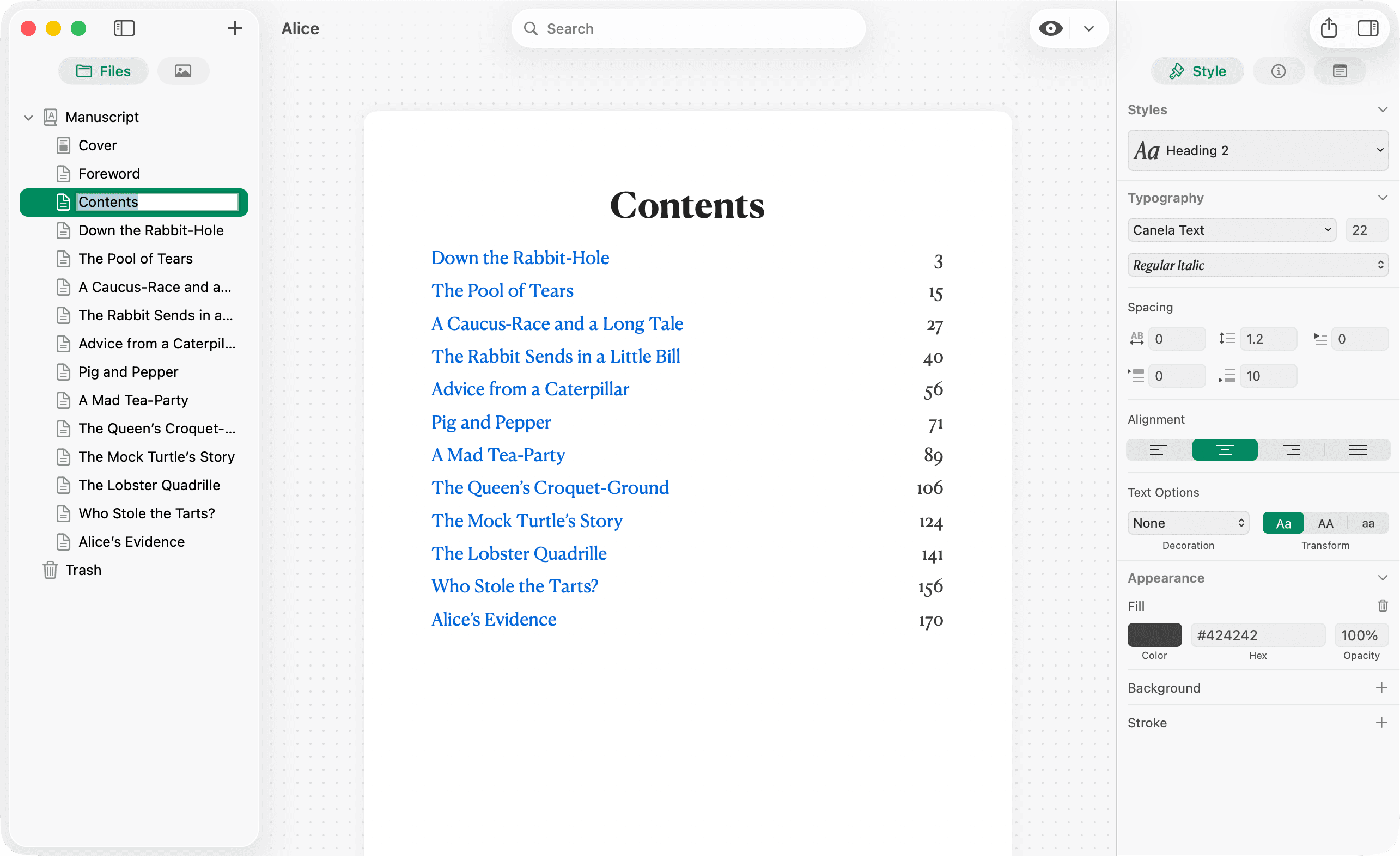
Table of contents settings
Open Metadata → Table of Contents to control what appears in the generated list:
- List headers within chapters — When off (the default), the TOC lists chapter titles only. Turn it on to include headings from each chapter.
- Heading levels — When listing headers within chapters, choose which levels (H1–H6) to include.
When a chapter title matches its first H1, that heading is omitted from the TOC to avoid duplication.
Front matter
By convention, the TOC lists chapters that come after the chapter that contains {{TOC}}—so a Contents chapter after a foreword won’t list Cover or Foreword. Earlier spine items and the contents chapter itself are not listed.
Link to a heading in the same chapter
- Add an explicit id on the heading line:
## The Harbor {#harbor}
- Link to it:
Return to [the harbor](#harbor).
Link to a heading in another chapter
Use the same #id when the target heading defines {#id} in that chapter.
For HTML and ePub export, you can also link to another chapter by filename stem (the chapter name without extension):
[Read chapter two](#chapter-two-filename)
These links work in exported HTML, ePub, and PDF.
Design shows TOC page numbers. Internal links do not navigate when clicked in Design yet—open the exported PDF, HTML, or ePub to verify link targets.
External links
Standard Markdown works:
Visit [Pinery](https://pinery.app).