Get started
Your first book
From opening Pinery to seeing your words in Design preview.
Create or open a project
- Launch Pinery.
- If the launch window is not visible, press
⇧⌘Nor go to File > New Project... - Choose a Template, for example Alice or start from scratch with Empty.
- Open an existing Microsoft Word document, or open an existing
.pineryfile.
[TODO: Add screenshot of the new project window]
Write a chapter
- Select a chapter in the Files sidebar (or create one with +).
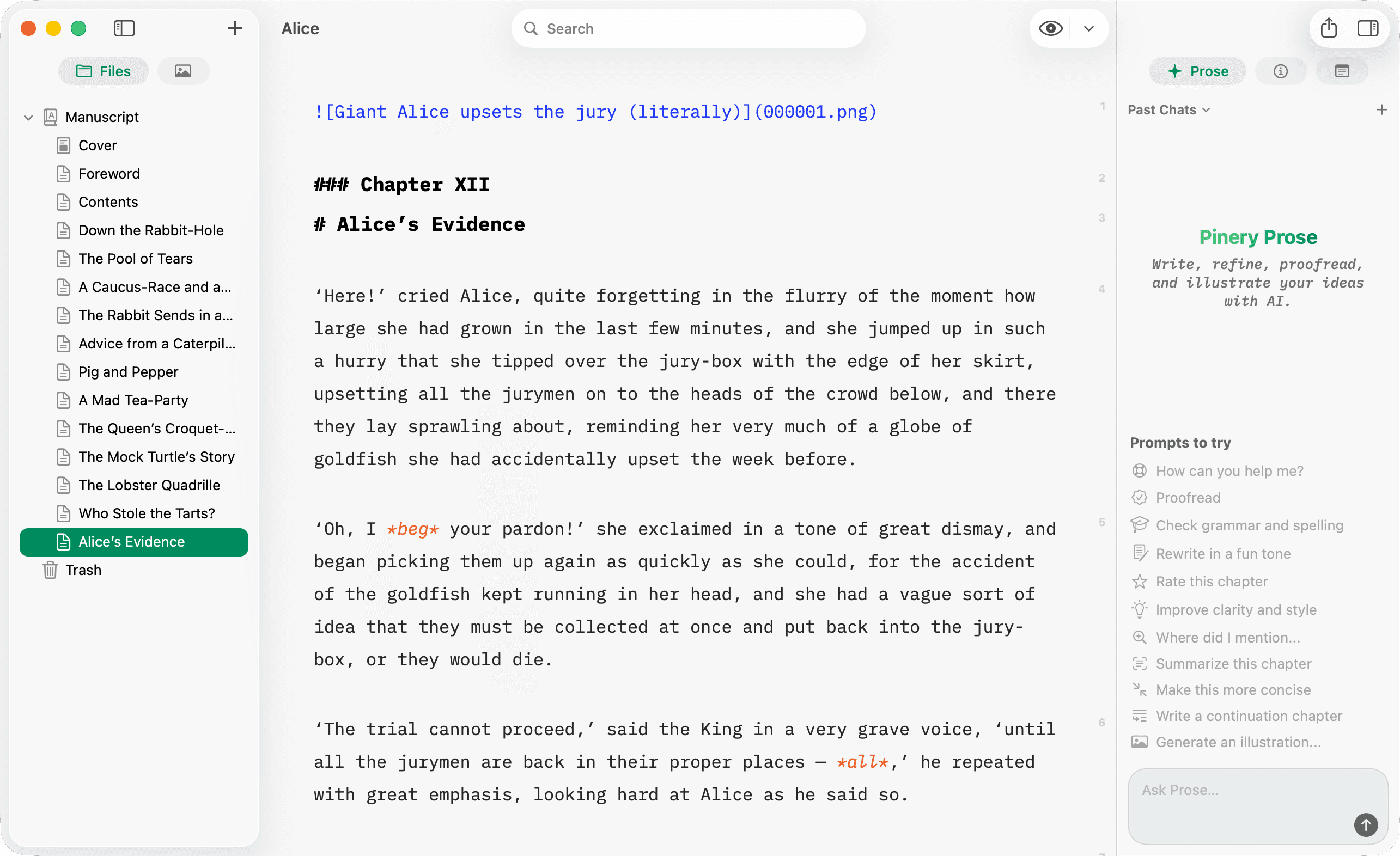
- In the Write tab, type Markdown:
# Chapter One

The harbor was still at dawn.
- Saves happen automatically as you work.
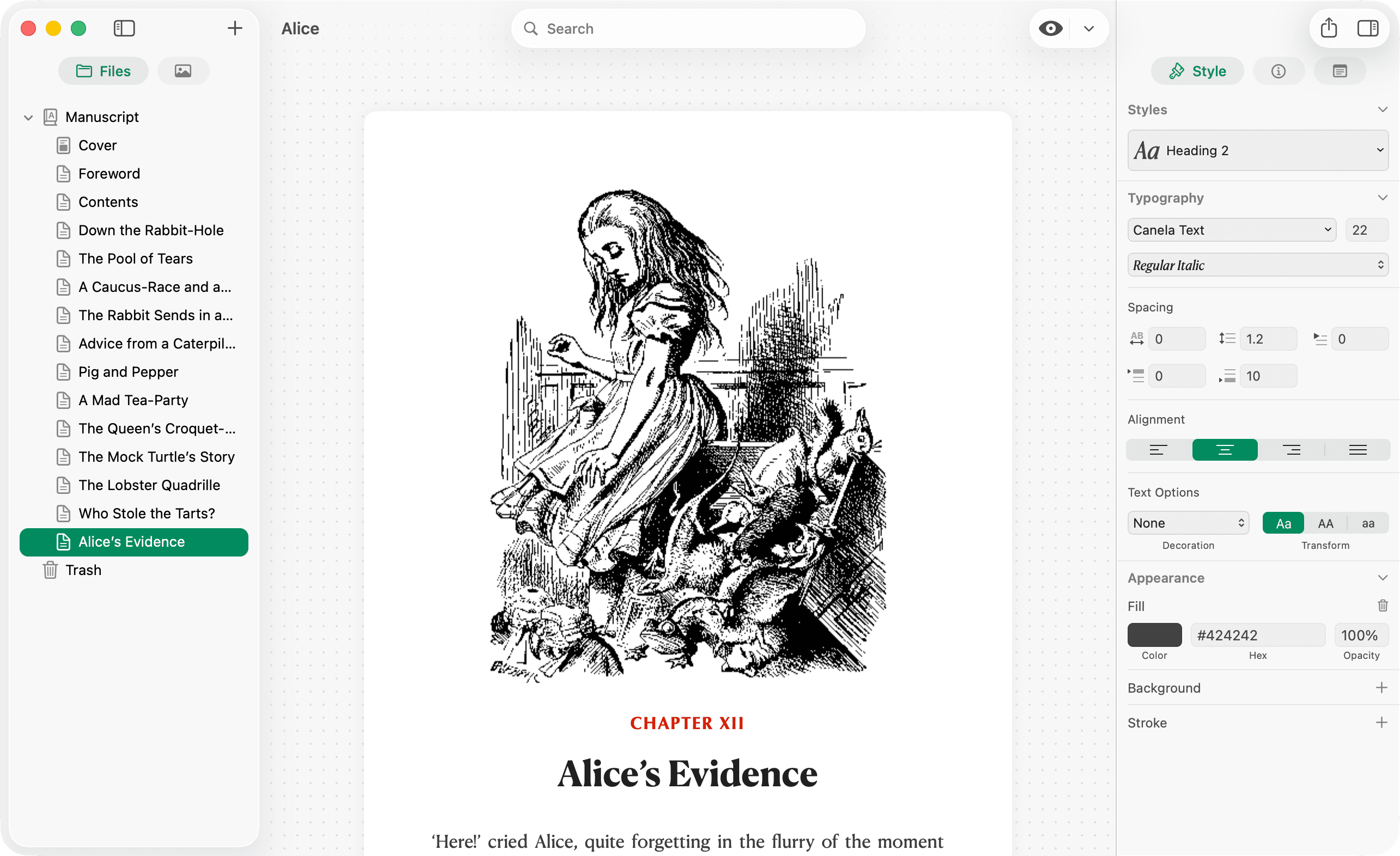
Preview in Design
- Press
⌘Ror use the eye control to open Design. - You see paginated pages with your stylesheet applied.
- Use the preview-mode menu to try the Kindle simulator for e-ink feel.
Add an image (optional)
Drag an image from Finder onto the editor or into the Assets panel. Pinery inserts a Markdown image like  when you drop into the text.
Try Prose (optional)
Open the Prose panel and ask it to draft or proofread. See Meet Prose.