Get started
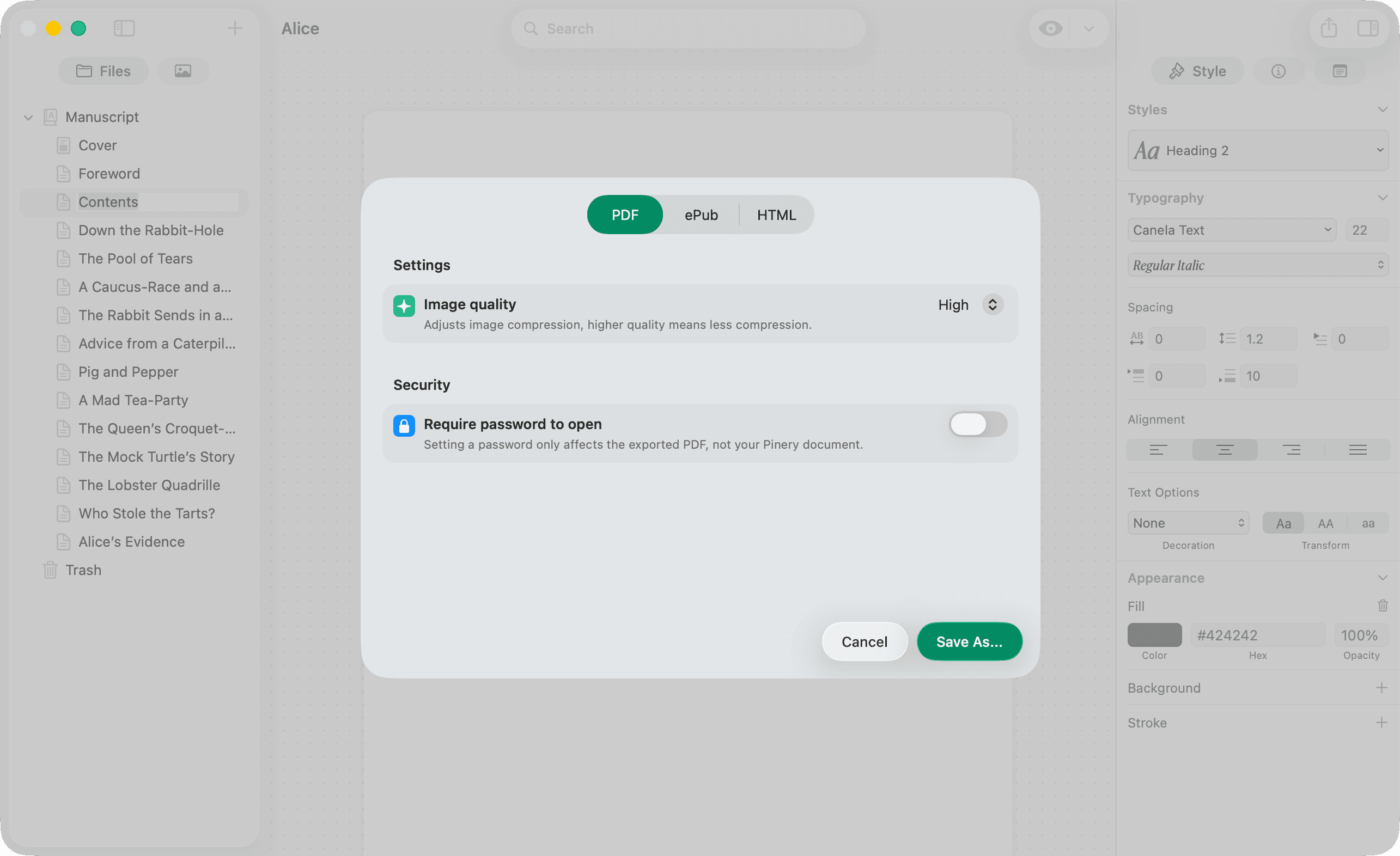
Export PDF, ePub, or HTML
When your manuscript is ready, export it for readers, stores, or the web.
Open export
- Choose File → Export, press
⌘E, or use the export control in the toolbar. - Pick PDF, ePub, or HTML.
Before you export
- Skim every chapter in Design.
- Open Kindle preview if your audience reads on e-ink.
- Confirm images appear in Assets and in Design.
- Spot-check links and
{{TOC}}(see Linking).
- Paginated layout based on your Design stylesheet.
- Options: image quality (original / high / medium), optional password (subscription).
- Chapter cover pages and footer text from your stylesheet.
- Internal
#links become clickable PDF links.
PDF export is meant for sharing and reading on screen—for example emailing a draft or posting a download.
ePub 3
- For Amazon KDP (Kindle), Apple Books, Kobo, and most retailers — KDP accepts ePub directly for Kindle eBooks.
- Optional embed fonts from your stylesheet.
- Cross-chapter links updated for the ePub package.
- Footnotes use ePub-appropriate roles and backlinks.
HTML
- Exports a folder of linked pages (not a single file).
- Mermaid charts saved as SVG assets.
- Optional last-modified metadata.
Subscription
Some export options (for example password-protected PDF) require an active subscription. See Pinery Subscription.